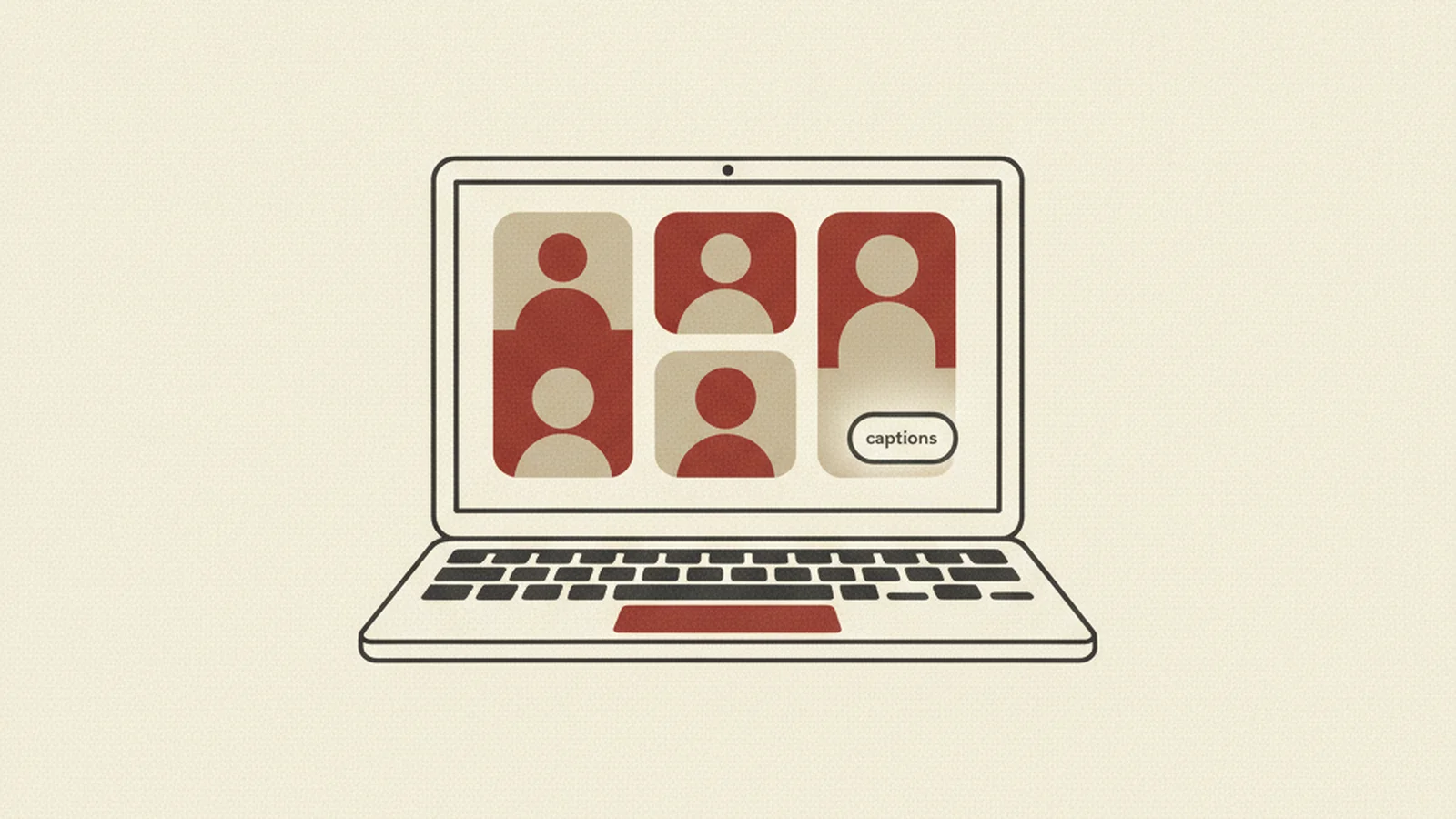
You are two clicks away from making every meeting you host measurably easier to follow, and you've probably never made them. Not because it's hard — because nobody ever pointed at the settings menu and said "that one, right there."
Here's the good news: you don't need a new app, a paid plugin, or a training seminar. Zoom and Microsoft Teams already ship with real accessibility features baked in. They're just off by default, buried a couple of menus deep, waiting for someone to notice them. Today, that's you.
The Stat: Zoom publishes an official accessibility page documenting its built-in features, including live captions and transcription — and Microsoft maintains equivalent official documentation for Teams, covering captions and full keyboard access. (Source: Zoom / Microsoft)
Setting #1: Live Captions (Not the Same as "Someone Reading the Chat")
Live captions turn spoken audio into real-time on-screen text, and they help far more people than you'd guess: attendees who are deaf or hard of hearing, sure, but also anyone joining from a loud coffee shop, a colleague whose second language is English, or someone who just processes information better when they can read it as well as hear it.
Both major platforms have this switched off by default at either the account or meeting level, which means most hosts never see it.
- In Zoom, captions live under Settings > Meeting > In Meeting (Advanced), or can be toggled live from the "Show Captions" (CC) icon in the meeting toolbar. Zoom's accessibility features page walks through where to find live transcription and how it's automatically generated.
- In Teams, open More > Language and speech > Turn on live captions during any call. If you host recurring meetings, it's worth checking your org's default so attendees don't have to hunt for the toggle every single time. Microsoft's Teams accessibility support page covers the exact steps and known limitations.
One honest caveat: auto-generated captions are good, not perfect. For anything high-stakes — an all-hands, a legal briefing, a training that will be watched later — pair live captions with a professional captioner or a cleaned-up transcript. WebAIM's guide to captions is a solid primer on the difference between "good enough for a live meeting" and "accurate enough to publish."
Setting #2: Spotlighting, Not Just Inviting, Your Interpreter
If a meeting includes a sign language interpreter, inviting them isn't the finish line — where their video tile lands on everyone else's screen matters just as much.
By default, video grids reshuffle constantly based on who's talking, which means an interpreter's feed can get bumped off-screen at the exact moment someone needs to see it. Both Zoom and Teams let a host manually pin or spotlight a specific participant's video so it stays fixed in place for the whole meeting, regardless of who's speaking.
A quick pre-meeting routine:
- Confirm with the interpreter (or the attendee who requested one) which name or tile to pin.
- Pin or spotlight that tile before you start talking, not after someone asks.
- If you're recording, double-check the interpreter's feed is actually captured in the output — some layouts default to speaker-view only.
This is a thirty-second task that quietly removes one of the most common complaints from Deaf and hard-of-hearing attendees in mixed-hearing meetings: losing the interpreter mid-sentence because the layout moved.
Setting #3: Narrate Your Screen Share Like You Mean It
Screen sharing is where a lot of otherwise-accessible meetings quietly fall apart. A slide deck, a spreadsheet, a dashboard full of color-coded cells — none of it means anything to someone who can't see the screen, or who's relying on captions and gets nothing but silence while you click around.
The fix costs nothing and needs no settings menu at all: say what's on the screen out loud. "I'm sharing a bar chart showing Q3 revenue by region, with the West Coast well ahead of the other three" takes five seconds and turns a visual-only slide into information everyone in the room actually has.
A simple habit to build into every share:
| When you're about to... | Say this |
|---|---|
| Open a new slide or tab | Name what it is and its purpose |
| Point at something with your cursor | Describe it in words, not just "here" |
| Show a chart or graph | State the trend or headline number |
| Highlight a color-coded status | Name the status, not just the color |
Setting #4 (Bonus): Prove Every Control Works Without a Mouse
Before you rely on any meeting platform for something important — a webinar, a job interview, a public town hall — take sixty seconds and try running it with your mouse unplugged. Can you mute yourself, raise your hand, open the chat, and leave the meeting using only Tab, Shift+Tab, and Enter? If a keyboard-only attendee can't operate the basics, no amount of captioning fixes that.
This one habit catches problems that live deep in how a meeting is set up — custom waiting-room pages, embedded registration forms, third-party webinar wrappers — well before an actual attendee runs into them live.
Three Myths That Keep These Settings Turned Off
"Captions are only for people who can't hear." Not even close. Captions help anyone dialing in from a noisy kitchen, a colleague listening on a phone with a bad connection, someone whose first language isn't the meeting's language, and plenty of people who simply retain spoken information better with a text backup running alongside it. Treating captions as a "special accommodation" rather than a default feature is exactly why they stay switched off.
"If nobody's asked for an interpreter or captions, we don't need them." Accessibility needs are frequently invisible. Someone might be hard of hearing and never mention it, or a new hire might be too nervous in their first week to flag that they can't follow the meeting. Defaulting these settings to "on" removes the burden from the attendee having to self-identify and ask.
"Keyboard navigation is an edge case." It isn't. Repetitive strain injuries, temporary hand injuries, motor disabilities, and plain old broken trackpads all put people in a keyboard-only situation at some point. A meeting tool that only works smoothly with a mouse is a meeting tool that fails a predictable slice of every audience, every time.
Building This Into How You Actually Run Meetings
Settings are only useful if they survive contact with a real calendar full of back-to-back calls. A few ways to make these habits stick instead of fading after week one:
- Change the account-level default, not just the meeting-level toggle. If you're a Zoom or Teams admin, ask whether live captions and keyboard-accessible waiting rooms can be turned on organization-wide, so hosts don't have to remember to flip them every time.
- Put the checklist in your calendar invite template. A one-line note — "Live captions will be on for this call; let us know if you need an interpreter" — signals to attendees that accessibility isn't an afterthought, and gives anyone with a specific need an easy opening to ask.
- Assign the screen-share narration habit to whoever is presenting, not just the host. It's easy for a host to remember their own slides and forget to remind a guest presenter to describe theirs.
- Test with a real device, not just your own setup. A layout that works fine on your laptop might break down on a phone, a tablet, or an older browser someone else is using to join.
None of these are one-time fixes. They're small, repeatable habits that take less time each time you do them, and they compound: a team that runs accessible meetings by default builds a reputation for it, without ever needing to call attention to the fact.
The Real Takeaway
None of this requires new software, a bigger budget, or a specialist on staff. It requires opening a settings menu you've probably scrolled past a hundred times and flipping a few switches that were built for exactly this purpose. Do it once, and it becomes muscle memory before every call.
Meetings are just one surface where accessibility either works or quietly fails — your website is another, and the gaps there are usually less obvious than a missing caption button. If you want a clear picture of where things stand, get a free accessibility scan of your website and see what else might be worth thirty seconds of your time.